Shopping
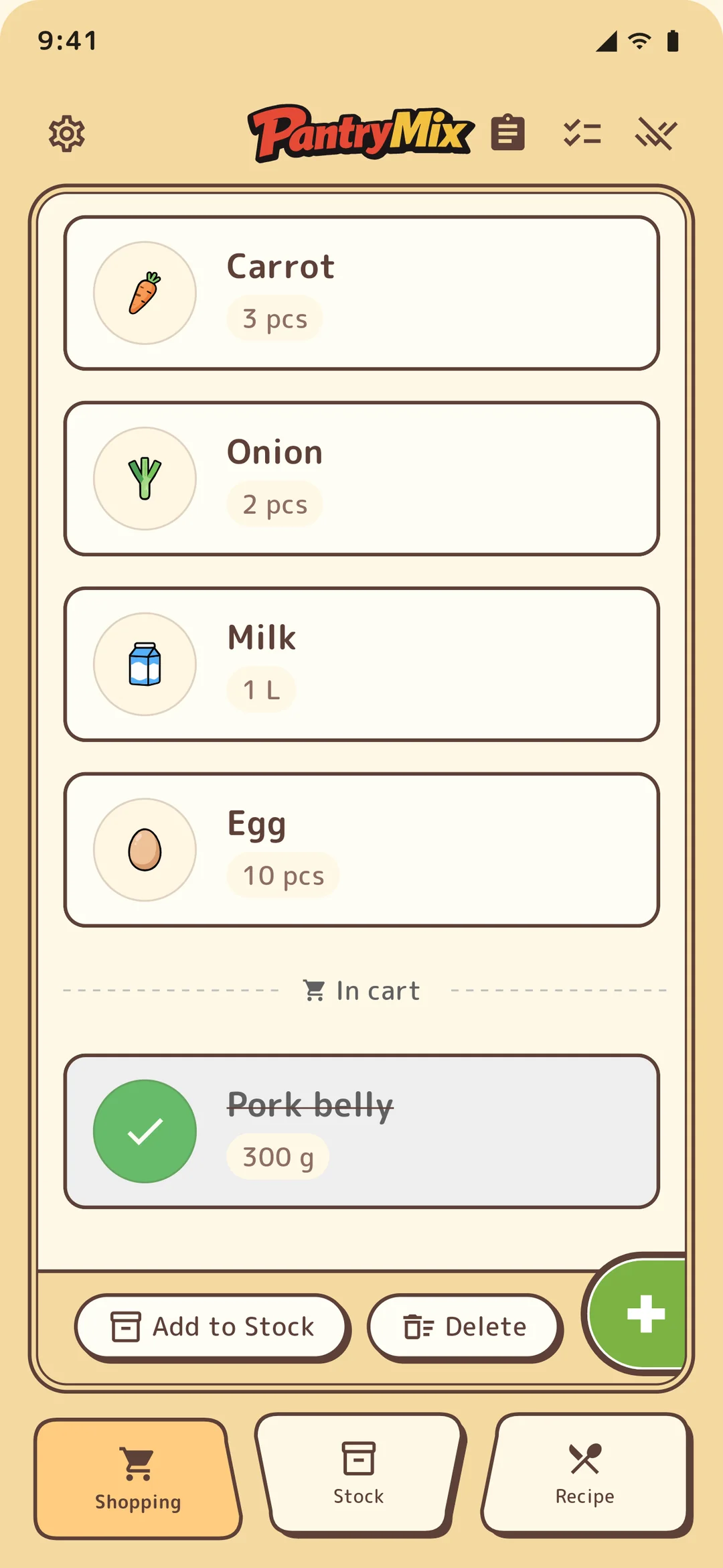
Shopping list basics: check items into stock and add missing recipe ingredients in one tap.
The shopping list is a core PantryMix workflow. Checked items can be moved into stock immediately, and missing recipe ingredients can be added with one tap.
1Add items
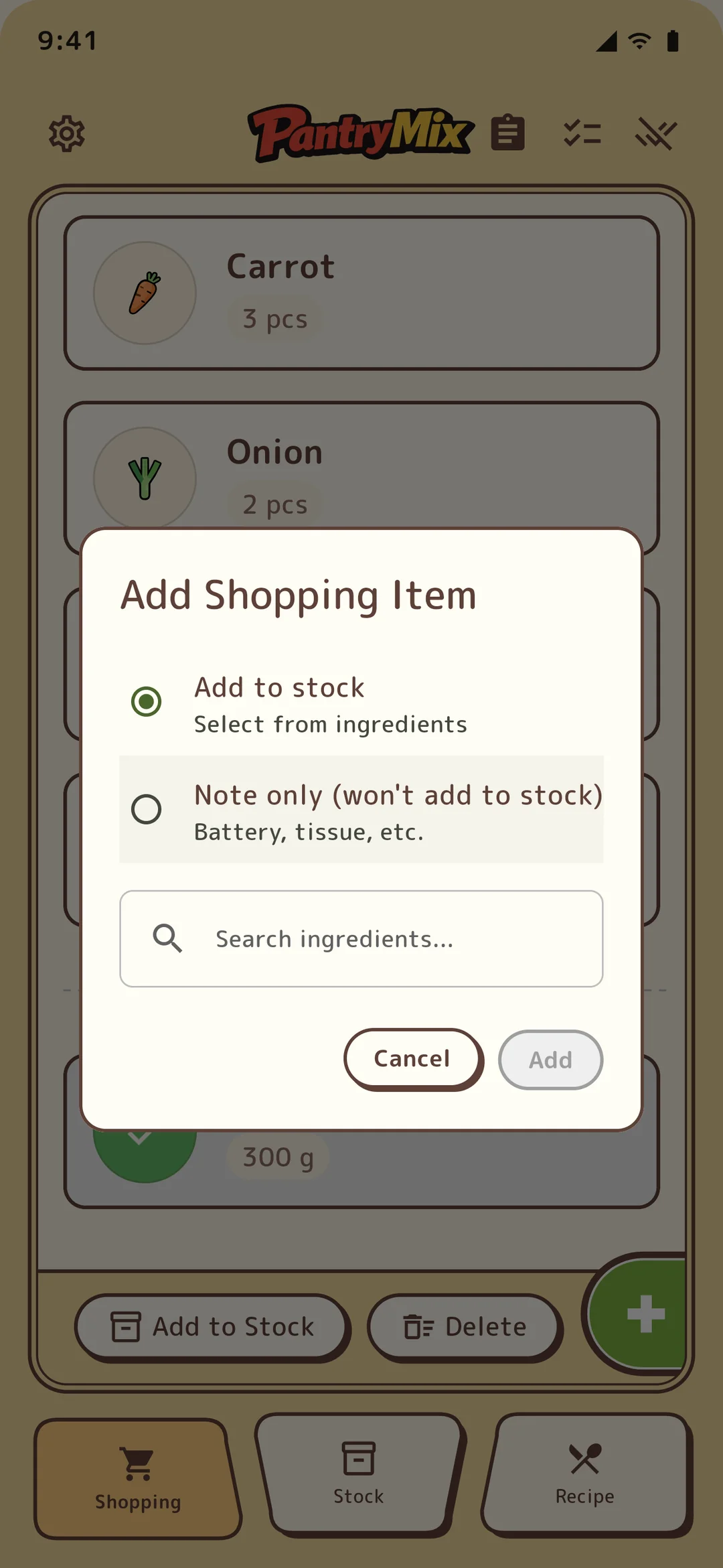
Use the + button in the lower right of the shopping list tab. As you type an ingredient name, PantryMix suggests entries from the food master and your past items. If nothing matches, you can register it as a new ingredient manually.
2Add missing recipe ingredients
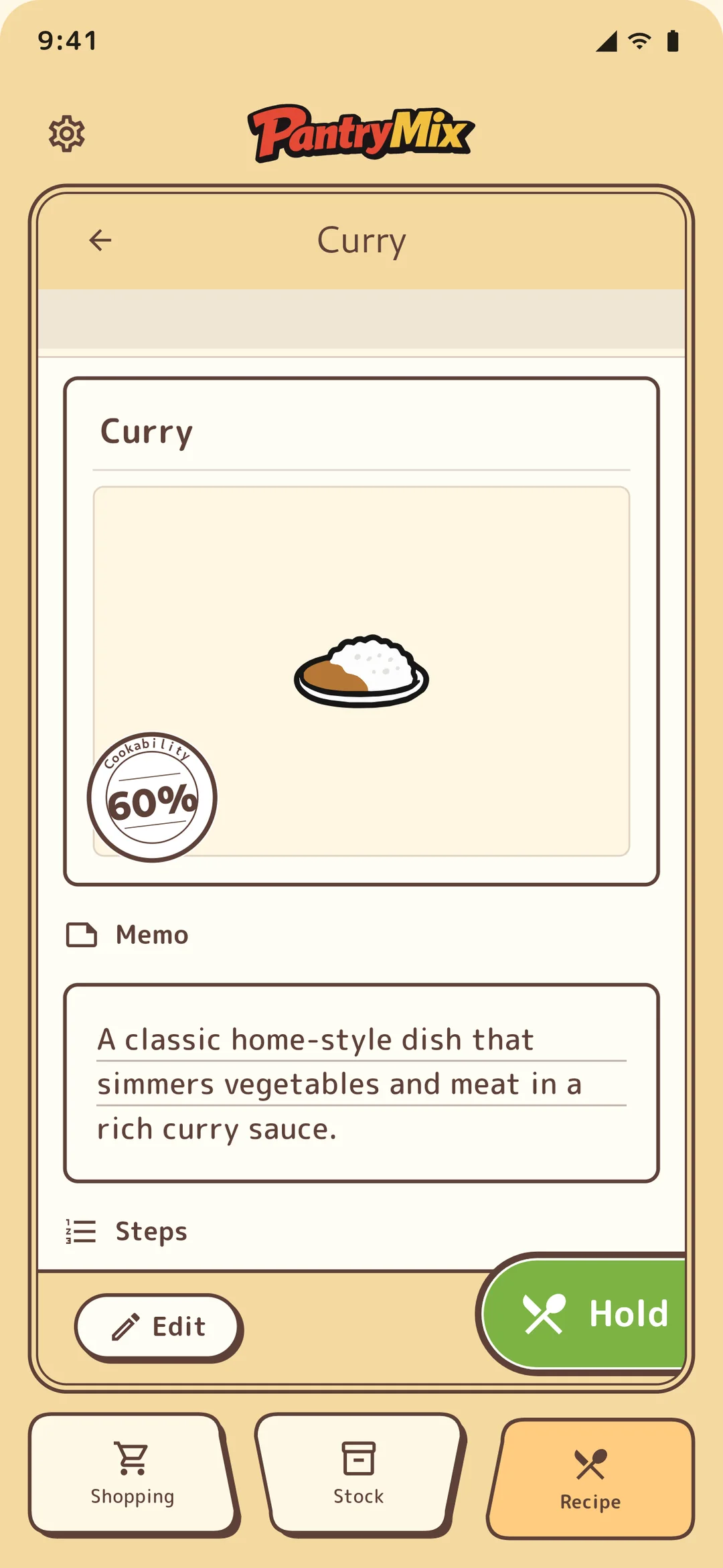
From a recipe detail page, the “Add missing items to shopping list” action adds only ingredients that are not currently in stock. This lets you decide a meal and prevent forgotten purchases in the same flow.
3Auto-add staples
When a stock item is marked as a staple, it can be added automatically to the shopping list when the remaining amount falls below a threshold such as 20%. This helps prevent running out of everyday items. This feature is available on every plan.
4Move checked items to stock
At the supermarket, tap items as you buy them. Press the “Add to stock” button at the bottom of the list to register checked items in stock in one batch. The default remaining amount is 100%, and you can adjust it later from the stock detail screen.
5Share with family
Family plan groups sync shopping lists in real time for every member. When one person checks an item, it disappears from other members’ lists too, reducing duplicate purchases.
Family sharing supports up to five members. PRO does not include shared family lists.
6Home screen widget (PRO / Family)
Place a widget on your home screen to check and tick off the shopping list without opening the app. Medium and large sizes also let you add an item on the spot. Widgets work on iOS and Android, and the item count and actions vary by size.
Checked items collect in the “cart,” and you can keep working offline — changes sync the next time you open the app. Widgets are available on the PRO and Family plans.
7Shopping tasks (PRO / Family)
From the task icon on the shopping list screen, you can create shopping tasks separately from the regular list. Each task has a title (required), an optional notification time, and a message, and a push notification arrives at the time you set.
On PRO, tasks work as reminders for yourself. On Family, you can assign a member to ask the household to “buy milk,” and that person gets a notification. Items inside a task can be checked and moved to stock just like the regular list. Shopping tasks are online only.