Stock
Manage the food at home by rough percentage so shopping and meal planning stay easy.
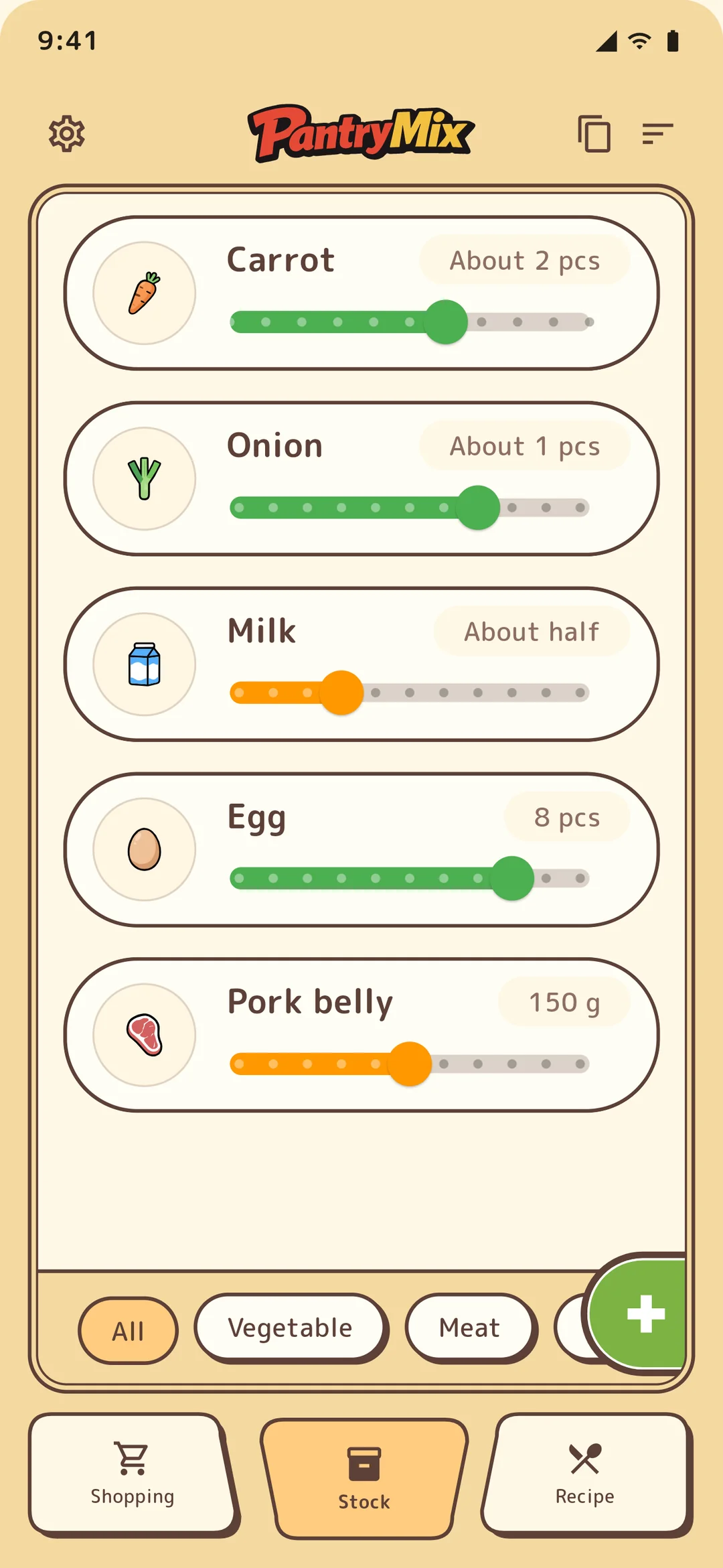
Stock is PantryMix’s lightweight indicator for “what is currently at home.” Instead of strict inventory control, you move a rough percentage slider so cooking and shopping keep flowing.
1Record remaining amount
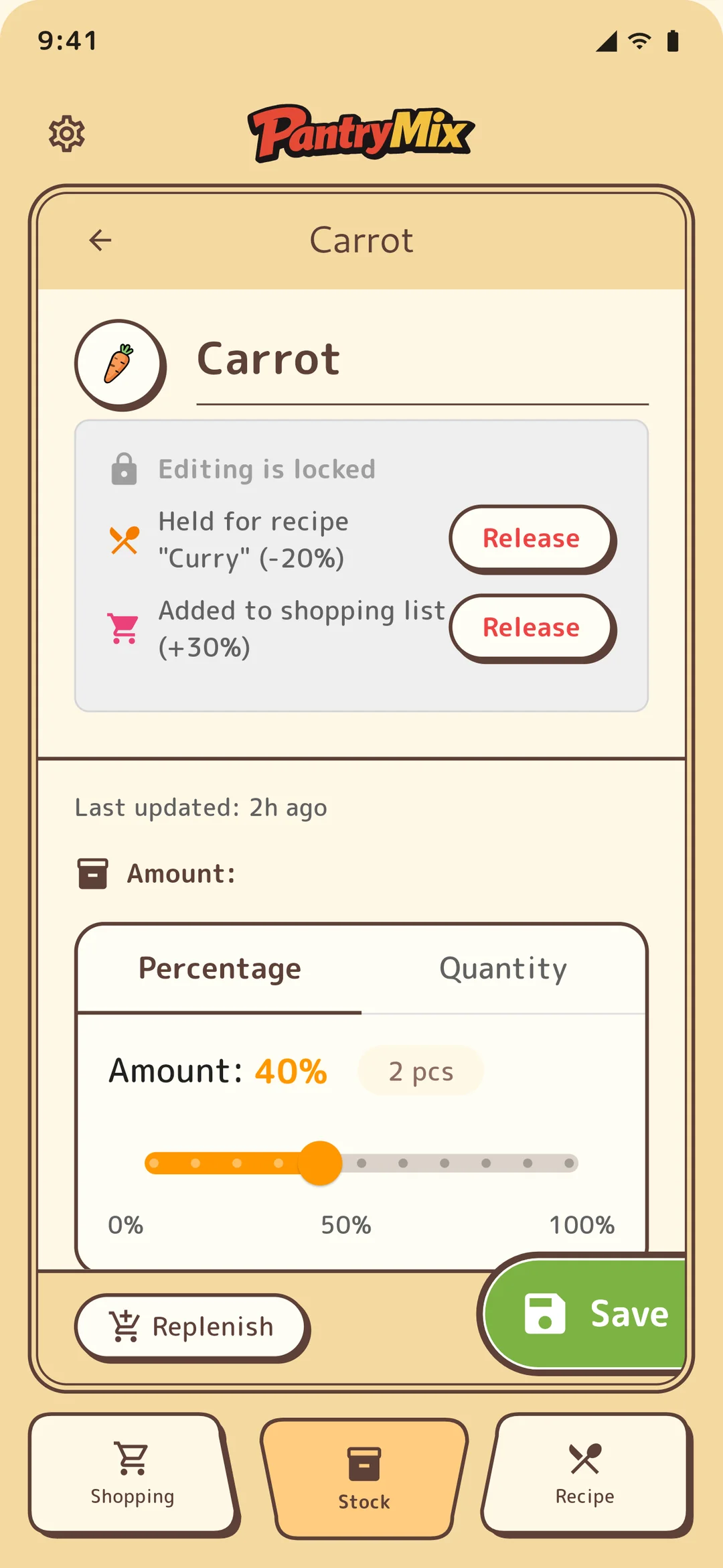
Tap a stock card and adjust the slider from 0 to 100%. The goal is a rough sense like “2 carrots left out of 5 medium carrots = 40%,” not exact bookkeeping.
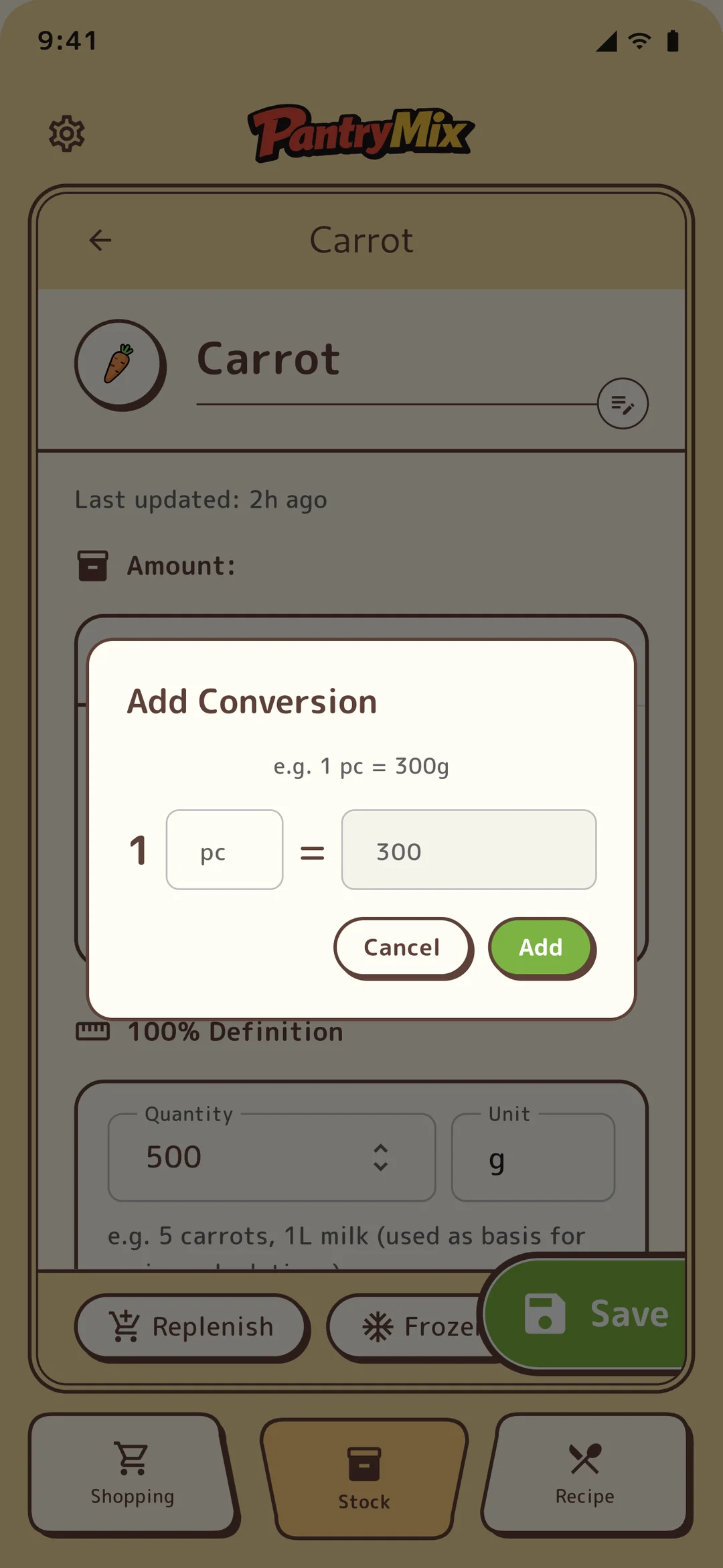
You can define what 100% means for each ingredient, such as 5 medium carrots, one liter of milk, or one 500 ml bottle of soy sauce. Change it from the “100% = ...” edit link on the detail screen.
2Incoming and reserved amounts
The stock indicator shows not only the current remaining amount but also scheduled changes.
“Incoming” means items already in the shopping list that you plan to buy. They are shown connected to the current gauge with separate coloring. “Reserved” means ingredients reserved by recipes you plan to cook, shown as a separate lower row.
Open the detail view to check and edit the breakdown for each shopping list or recipe.
3Staples
Turn on “Set as staple” in the stock detail screen to automatically add an item to the shopping list when its remaining amount drops below a threshold such as 20%. This is useful for soy sauce, mirin, rice, and other basics you notice only after they run out. It is available on every plan.
PRO and Family can also use 0% auto-refill, which replenishes from spare stock as soon as the current stock reaches 0%.
4Copy stock for AI
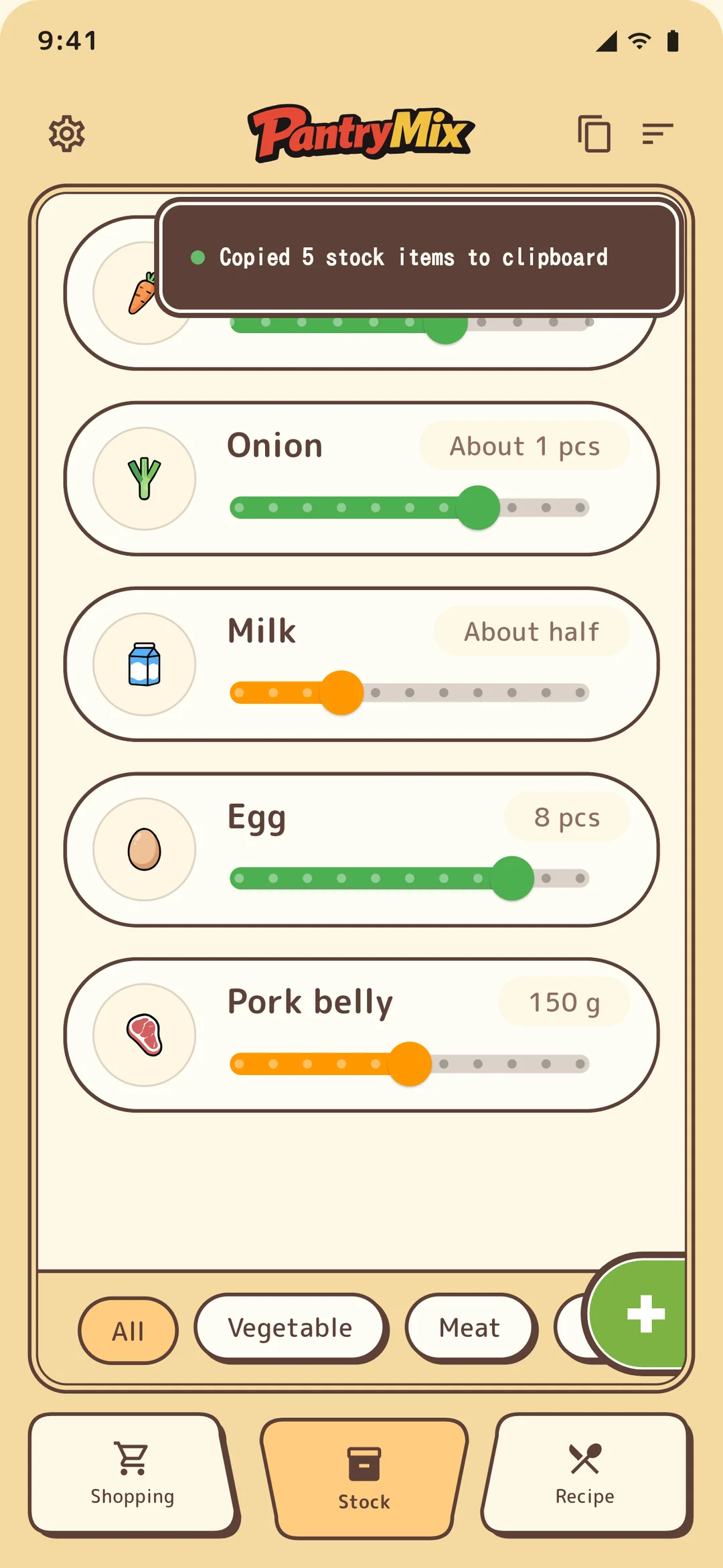
Use the copy button at the top of the stock list to copy the current stock as text. Paste it into ChatGPT or notes to ask “What can I cook with this?” or to keep a quick record.
5Filter by category
Use the sub bar at the bottom of the stock list to filter by categories such as vegetables, meat, and seasonings. Only categories that currently contain stock appear, so the choices stay tidy.
6Freeze to manage separately
From “Freeze” on the stock detail screen, use the slider to choose how much to freeze, and that portion splits off as frozen stock (for example, freezing 30% of a carrot that is at 50%). Frozen stock is marked with an ice icon and a light blue color, and shows the number of days since freezing.
To thaw, use “Thaw” on the frozen stock to return it to regular stock; if regular stock of the same ingredient exists, the amounts merge automatically. There are no expiry notifications or auto-deletion — it is a simple way to loosely track when you froze something. It is available on every plan.